
Accessibility is the practice of making information, activities, and/or environments sensible, meaningful, and usable for as many people as possible (SeeWriteHear.com). Using tools such as Read&Write Google Chrome Extension described below can increase independence, autonomy and inclusion in learning while practising skills that can be used in the future.
Read&Write

Read&Write for Google Chrome is a Google Chrome extension that displays a literacy toolbar of functions to increase accessibility and support literacy. When you click on the purple extension icon, Read&Write opens this toolbar.

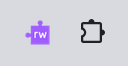
The icon should be in the Chrome toolbar on the right hand side and looks like a purple puzzle piece with a white ‘rw’ on it. If the purple icon is not there, then click on the grey puzzle blobby icon to open chrome extensions so you can pin it to the toolbar or go to ‘manage extensions’ to search and download it.
Read&Write has many useful functions to support reading and writing to help you feel more confidence and independent when learning, studying and researching:
- To help with reading, there is a ‘Text-To-Speech’ function with adjustable settings which is explained here. Read&Write for Google Chrome™ – Text to Speech
- For inaccessible text, like the text in an image, you can use the ‘Screenshot Reader’ which is explained here. Read&Write for Google Chrome™ – Screenshot Reader
There are other useful functions that support focus, selective attention and reduce overwhelm when there is a lot complex visual information. They are called ‘Simplify’ (icon second from the right with the arrow pointing down) and ‘Screen Mask’ (icon in the middle that looks like a monitor with a stripe).
- ‘Simplify’ takes the information on the page (Google Doc or website) and shows it in a simpler and less cluttered format that you can adjust to suit you: Read&Write for Google Chrome™ – Simplify
- ‘Screen Mask’ darkens or tints the window contents except for a stripe of the page that you can move with your mouse cursor to help you focus on a section of the page, like a reading ruler on a paper page. This could be used with the Simplify function to further support your focus. It also has adjustable settings.
There are other functions as well as the examples described above. It is worth spending some time exploring the toolbar to see how it could be supportive for you or the person you are supporting, and they are quite intuitive. More information is available easily available online by using a search engine.
A full version of Read&Write is available as part of a Google Classroom account (all Highland pupils will have this, ask the school for more details). It can be downloaded on the Chrome browser of any computer as long as you are signed in to your Google Classroom account. If you do not have a Google Classroom account, you can get a limited version and can opt to subscribe. For more information, see the ‘texthelp’ website.

Accessibility and Chromebooks
Here’s a padlet that Robert Quigley has put together on accessibility and Chromebooks. It’s best to access this through Google Chrome rather than another internet browser.
Accessibility and Chromebooks Session for Highland Parents
Robert Quigley led a session for parents in December 2021 with Dyslexia Scotland. This recording of it is on Dyslexia Scotland’s YouTube page.
CALL Scotland
There is lots of information about accessibility and how technology can help support various Additional Support Needs available on the CALL Scotland website.
 Highland Council Psychological Service